
Clublog settings
Settings needed to upload QSOs to ClubLog.org
IMPORTANT: ClubLog has introduced a more secure access method that requires an "Application Password" created on the ClubLog.org site.
The previous password will no longer work for EasyLog connections, but it remains functional for direct website access through a browse
How to obtain the Application Password
Steps to create an Application Password
- Sign in to www.clublog.org
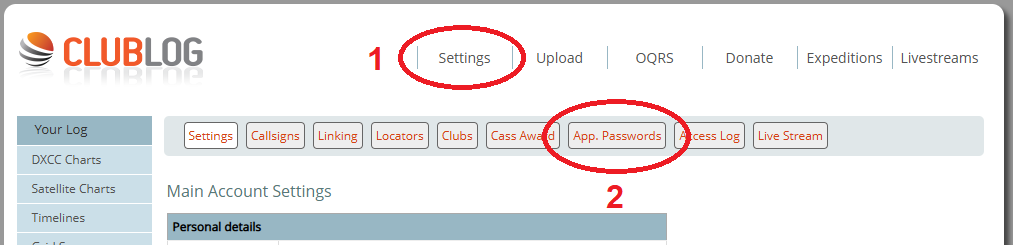
- Select Settings from the top menu (point 1)
- Select then App. Password (point 2)
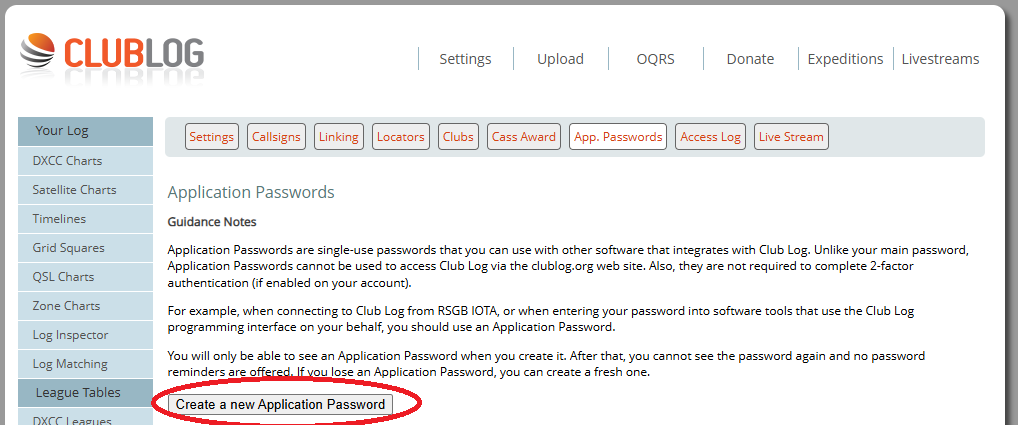
Then scroll the page to find the button Create a new Application Password and press it.
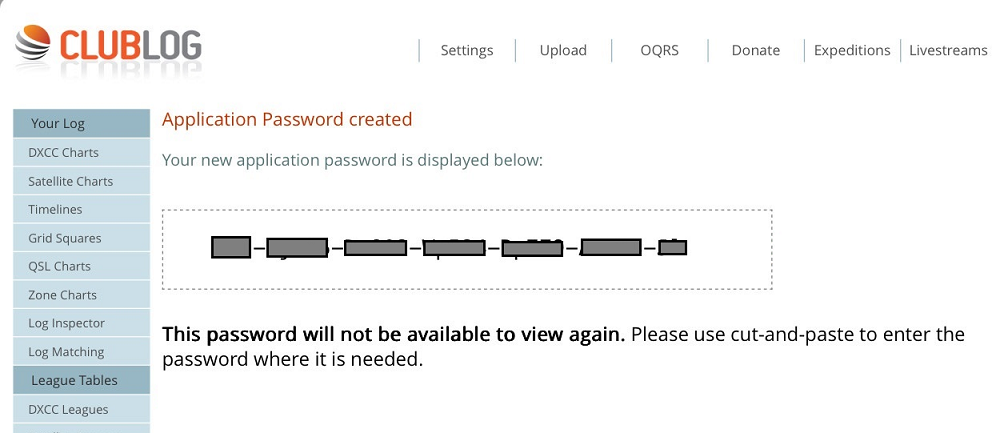
In a new page ClubLog will show an extensive series of characters as seen in the following image which is the Application Password.
This series of characters must be copied and inserted into the EasyLog Login dialog box.

|
Copy and paste the password in a safe place (in a file, in a password manager) and copy into Club Log account dialog box (as in the image below). |
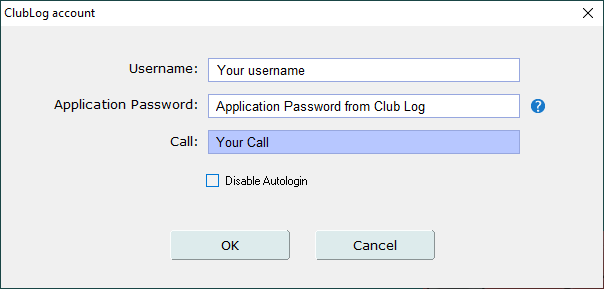
Fill the fields of the ClubLog account dialog box:
Username: your username (i.e.: aa1aa@gmail.com)
Application Password: the string shown in the ClubLog site, i.e.: Tm7X-4323-...
Call: your callsign or the call registerd in ClubLog.
Press OK
ATTENTION!
ClubLog site is very sensible to wrong data during the login phase. So please keep attention to the data you wrote, elsewhere ClubLog will block you for almost one hour.
Please note that it is not a problem of EasyLog but a problem of the alghoritm used by ClubLog during the login.
For any question about login problems, please contact G7VJR at Help Desk in ClubLog.