How to download and install EasyLog updates from the User Reserved Area
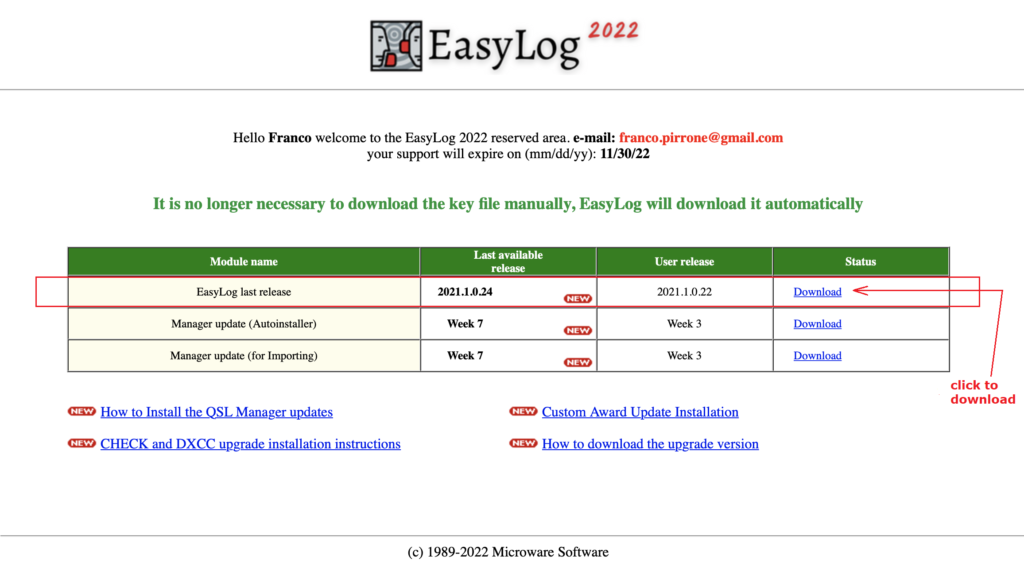
The first row of the table in the User Reserved Area (EasyLog Last Release) shows the last available release.
The release number of the last available release is shown in the second column from the left (Last Available Release), while the installed release is shown in the third column.

The presence of a red "new" icon in the last availabel release column means that there is a new release that has not been installed yet.
Clicking on the Download link, in the fourth column, will start the download, save it to a temporary directory or to the desktop of your computer. Once the download is complete, double-click on the installer (install.exe) and follow the on-screen instructions.
The installer will complete the installation in a few seconds, the installed release of EasyLog will be updated to the latest available release.
How to install it:
First connect to the User Reserved Area of our website (www.easylog.com/ELUP) and provide username and password when prompted. Remember that your credentials must be typed in capital letters.
Once logged in, the following page will appear:
Please Note:
It is no longer necessary to manually download the key file LOG5.DLL which is now automatically downloaded when needed when EasyLog is started (you will be asked to type in your login credentials in the User Reserved Area)
From version 2022, the installation program has been unified, there is only one installation program that provides the first complete installation on a computer where EasyLog has never been installed and the upgrade to the latest release if a previous release is detected on the computer.